UiPath Studio – Keyboard Shortcuts & Customization

1 comment


Keyboard shortcuts are available in UiPath Studio for a variety of tasks to save users time. You will discover in-depth information about the many keyboard shortcuts available in UiPath Studio in this chapter, as well as how to customise them.

Keyboard Shortcuts

Keyboard shortcuts are a way to perform one or more operations quickly and easily. For example, CTRL+S will save a word document. Although these operations can also be completed via a menu, pointing devices, a command line interface, etc., employing keyboard shortcuts speeds up the process significantly.

Comments 

 Ctrl+D: With the help of this keyboard shortcut ,you can ignore the activity that you recently selected by pacing it into a Comment Out container.  Ctrl + E: It will remove the activity that was placed in comment out container. 

Debugging 

F7: This function key launches the workflow that is open at the moment in debug mode.
F8: This function key verifies if the workflow that is open at the moment is valid.
F9: Using this function key, we can add a breakpoint to the selected activity or task.
Shift + F9: This function removes all breakpoints from the active workflow, the opposite of what F9 does.
F11: During debugging, we can enter a block of actions by pressing this function key. It will also carry out the initial activities.
Shift + F11: When debugging, this shortcut allows us to skip a block of actions in the currently selected workflow from being executed.

Recording

Alt+Ctrl+W:- The shortcut key Alt+Ctrl+W displays the Web recording toolbar (the letter "W" stands for Web).

Alt+Ctrl+B:- The shortcut key Alt+Ctrl+B, where "B" refers for Basic, activates the Basic recording toolbar.

Alt+Ctrl+C:- The shortcut key Alt+Ctrl+C (the letter "C" stands for Citrix) launches the Citrix recording toolbar.

Alt+Ctrl+D :- ('D' stands for Desktop in this shortcut key) launches the Desktop recording toolbar.

F2: When recording, you can add delay using this function key.

F3: he F3 function key is used to designate a specific recording zone.

F4: Using this function key, we may select the UI framework to record in, which can be Default, AA, or UIA.

Text Automation 

Ctrl+Alt+T:- Activate the Test Explorer panel.This is a available for use throughout the Designer panel.

Alt+T:- To open the Test Results sub-panel in Test Explorer, press Alt + T. This is only usable in the Test Explorer panel.

Alt+A:- To open the Activity sub-panel in Test Explorer, press Alt + A. This is only usable in the Test Explorer panel.

Arguments Dialogs


Tab - Cycles through the grid's items.

Delete - Removes the grid item that is currently selected.

F2- F2 places the pointer at the end of the line and highlights the currently selected cell for editing.

Ctrl + Tab -  Cycles through the window's selection of choices for the currently chosen grid item (Delete, Move up, Move Down).

Status Bar

Use the status bar menus for Source Control, Orchestrator folders, and Orchestrator/Cloud Connection by pressing Alt + D
To navigate the menus, press Shift + Tab. Press Enter to open a menu after you've chosen it.

Miscellaneous


F1:-  You can access help topic to the element you currently selected .

Alt+F4:- Close the current open windows .

Windows key + Up Arrow :-  Maximizes the current window presh the window key and up arrow.

Windows key + Down Arrow :- Restores down the current window presh the windows key and down arrow.

CTRL+P:- Opens the Manage Packages window by pressing Ctrl + P.

ESC:- Publish, Manage Packages, and File Diff windows are closed by pressing Esc.

Ctrl + F1:- To minimise or enlarge the ribbon, press Ctrl + F1.


read more

UiPath – Understanding User Interface Components

No comments

 The Activities Panel: -

All of the smaller jobs or activities are located in this panel, which is on the left side of UiPath Studio. Drag and drop operations make it simple to incorporate these tasks or activities into the ongoing project. As well

offers a search field for easy access. Options to expand and collapse all gives the user the option to simultaneously show and hide all of the actions.

We can also reveal or conceal the Favorite, Recent, Available, and Compatibility activity folders using the Show Activities list. Similar to other interface panels

Float, Dock, Auto Hide, and Dock as document are further possibilities.
The Quick Access Toolbar can be seen in the following screenshot:


The activity panel is visible in the screenshot up top.

The Library Panel : -


We are able to reuse automation thanks to the library panel. We have several reusable Samples and Snippets in the library panel. It also offers a search bar to help you locate the things more quickly.

The choices to Expand All and Collapse All allow the user to simultaneously reveal and hide. Like Additional choices on the interface include Float, Dock, Auto Hide, and Dock as a file. The library pane collapses when UiPath launches, thus we must click to access all the options.
The screen pictures below provide an overview of it:


The Project Panel :-

We may view the contents of the current project using the project panel. With just one click on the file explorer option in the project panel, we can also browse the files in the current project folder. To connect to source control, there is a quick navigation link to the team tab.

It offers the same choices as other panels on the interface, including Float, Dock, Auto Hide, and Dock as Document. The Project window is closed when UiPath first launches, and we must click on it to see all the options.

The screen picture that follows provides an overview of the project panel:


The Properties Panel :-

The UiPath studio's properties panel is on the right side. It enables us to see and modify an activity's or task's properties. In other words, the properties panel is where configuration management, such as configuring a specific activity or task's output, takes place.

It also contains the options of Float, Dock, Auto Hide, and Dock as Document, just like other panels on the UI.

The screen picture that follows provides an overview of the Property panel:


The Outline Panel :-

In the right side of UiPath studio, the outline panel is immediately below the properties panel. As suggested by the name, it offers the project hierarchy in addition to all the variables and nodes. Any activity or job in this panel can also be highlighted by selecting it in the Designer panel. In this panel itself, we can also choose any individual activity or assignment.

The outline panel can be better understood by looking at the diagram below:

In the bottom left corner of the UiPath studio, there is an output panel.
  • It shows the results of the Write Line or Log Messages tasks.
  • If there are any exceptions to the packages, they will be shown in the Output section.
  • The buttons in this panel's header allow us to show or hide messages with various log levels.
  • By double-clicking the displayed message, we may get more details about it.
  • It also makes it possible for us to copy the data.
  • This panel's other primary duty is to display the logs while debugging for the duration of an activity or task, from the time it begins to execute until it completes.
  • The Clear All button can be used to remove logs and other data from this panel. 2000 lines can be shown at once.


read more

Life Cycle of RPA

No comments

 Life Cycle of RPA


The life cycle of RPA does not have any define stage. In generally 4 stage of RPA life cycle .

1: Analysis 

2: Development

3: Testing Phase

4: Deployment of bot


Analysis: - Business team identify the business process that is to be automated.

Development: -   Development team start working on the requirement for to automation task.

Testing Phase: -  One-time bot is developed then Testing Team start working.

Deployment and Maintenance.  After successfully testing and development of the bot. it is now ready for deployment.


How many type Workflow of RPA (Uipath)

There are 4 type of workflow of RPA

1 Sequence.

2 Flowchart.

3 State machine.

4 Global handler.

1: Sequence: - Use for action which need to be performed one after the other (linear project).

2: Flowchart: -   Used to create complex business process as its allows us to do multiple branching of logical operator

3: State Machine: - One of the workflow types in uipath that use a finite number of states in the project 

4: Global Handler: - Global Exception handler is a type of workflow designed to determine the project's behaviour when encountering an execution error.  


Why is UiPath the most preferred RPA tool in industry?

UiPath is a business process automation tool created specifically for enterprise computing. According to industry standards, a wide range of special features and functionalities are available.

Complete Solution

  • Uipath studio(IDE for development)
  • Uipath Orchestrator()


How RPA work ?

RPA can perform required tasks, which are usually repetitive and rule-based, much more
better than humans. But here the question arises that how RPA works.. RPA bots
Interacting with the user interface of the computer system to replace the back office exactly
Human.

RPA works with any existing application and performs structured processes automatically. RPA code is free and user friendly and hence does not require any additional software development course or IT specialists for working IN RPA. In simple words, we can say that RPA works using demonstrative steps.


Implementing RPA

Software robots, virtual assistants, or bots are developed for the purpose of adopting RPA, a software-based technique, and they can carry out tasks like accounting, finance, management, enter data, etc.

The following strategy, which uses the RPA implementation technique, ought to be used

  • Steps to execute RPA successfully:
  • Determine the automation opportunities first.
  • Then, improve the procedures that you've found.
  • Create a business case for the RPA journey next.
  • Choose an RPA vendor and apply them.
  • Start developing the first RPA bots right away.
  • Finally, broaden the scope of our RPA and keep developing RPA bots.


TOOL  for RPA

Although there are many RPA tools available, the following are some of the most well-liked ones:

Purple Prism

It is RPA software that offers businesses an adaptable digital workforce. It is accessible at https://www.blueprism.com/ for downloading. Automating Everything

Automation Anywhere,

which may be obtained from https://www.automationanywhere.com/ UiPath, is another crucial RPA tool.

UiPath

It is an RPA programme. It makes process automation more effective for businesses. You can download it via OpenSpan at https://www.uipath.com. 

OpenSpan

It is a.net framework-based robotic process automation solution. Desktop application integration is beneficial. It is currently referred to as Pega OpenSpan after being purchased by PEGA.

WorkFusion

It is another another tool for robotic process automation that offers an AI-powered platform for automation. You can download it from

Which Tool Should I Use?

As we've seen, there are several RPA tools available, but which one should you select? The following are some factors to take into account before using RPA.


Technology

 The technology, such as Microsoft.NET or IBM, is the most critical factor to examine. The tool is built using mainframe, Java, etc. The tool must be cross-platform. Such that any application can be supported by the automation solutions.


Data

 Data is yet another crucial component. We must select a reading aid that is simple to use. and enter commercial data onto numerous platforms.


Interface

 User-friendly user interface is essential for RPA since complicated user interfaces will create delays. the implementation procedure.


Interoperability

 As mentioned, toll needs to function across many platforms and applications.

 Simple management

 How readily and successfully robots can be managed is another crucial factor. The High levels of control and visibility are required for the tool.

 types of work

 The kinds of jobs that RPA can configure, whether they are rule-based or knowledge-based.

Another crucial factor to consider when choosing a tool is the tool.

 Security

 Security is yet another crucial factor to take into account. RPA is a component of, as we are aware.

 How many security measures can be incorporated in software is a matter to be taken into account.


read more

UiPath ReFramwork Process

No comments

1: -Robotic Enterprise Framework: -

Robotic Enterprise Framework is a project template which provide all the required basic need of any automation process.

The Feature of RE-Framework

Proper Exception handling

Recovery abilities

Effective logging


The Business process can have divided into 3 category

Linear Process

Interactive Process

Transactional Process


1: - Linear Business Process: -

Linear process run once time. It’s not very suitable for repetitive process (Drawback)

 2:- Interactive Process: -

 Get data once and process data multiple time

Drawback: -  If one of the data has some problem then your entire workflow will fail.


3: - Transactional Process: -  


Transactional Process get data and process are independent from one another as. In transaction process one data has problem then never workflow will fail. 


In Robotic Enterprise Framework have 4 state

·       Init state.

·       Get Transaction data state.

·       Process Transaction Data State.

·       End State.

In Robotic Enterprise Framework have 7 transaction
As you can see, it has a main.xml file that uses state machine workflows and each
step is linked with each other for work processes.


Why Use Re-Framework in Uipath

Re-Framework makes the tasks of a developer very easy. Re-Framework  works as a template and provides all the basic details that you as a developer may need for
any process automation. It can use any type of business process. if any transactions fail it can re-try. It can handle error very easily without human intervention.


read more

How Make Zip a unzip folder or file

No comments

Zip Activity

It is a widely popular archive format. Zip files are data containers. They store one or several files and folders as a single file in a compressed form. Password is optional. It compresses into "zip" and "rar" formats.


Unzip Activity

It is the act of extracting files from a zipped single file (with password) to a specific folder. It has an option called ExtractType which is useful for selecting Standard (Normal)/UniExtract (it's made for Chinese zip file extraction).

Benefits


Zip activity: It supports .zip and .rar both formats and has a password option to protect the file; It saves storage space; It allows you to encrypt private data; Helpful when sending such data over the Internet. Unzip Activity: The codepage is the major advantage of this activity. It supports multiple languages. It is capable of unzipping files with the option of password.

If you want zip to unzip folder or file so that you first install zip activates many activates is available on uipathstudio .


first install uipathTeam.unzipFile.Activites package or any other package install. after installed go to main.xml and first create a sequence and click activities and first create a sequence and search zip and click Compress/zip file under sequence. please see below image.
please give the path of your file where have is your file then give the path of the file , you want zip 

Unzip folder:- 

first create a sequence and search zip and click Extract/Unzip file under sequence. please see below image.
please give the path of your file where have is your file then give the path of the file , you want unzip
and give Designation path of file where you want unzip file location

Next Method 
first install Package BalaReva.ZipUnzip.Activities 


read more

UiPath – Installation

No comments
This post will talk about  you through the installation process of UiPath on your local
computer.
Requirements for Installing UiPath Studio
Before installing UiPath, we need to meet the following requirements:
Windows Computer: 
We need a modern Windows (2007 and above) computer. Note that there is no MAC version of UiPath.
Knowledge of MS-office and the Internet:
If you are going to use UiPath, you need to have knowledge of spreadsheets, MS Word, etc.. with knowledge of the internet and software applications.
Basics of Robotic Process Automation (RPA):
It would be beneficial if the user had Basic knowledge of RPA.
Steps to install UiPath Studio
You need to follow the below steps to install UiPath Studio on your local system.
Step1: To install UiPath first, follow the link
https://community.uipath.com/


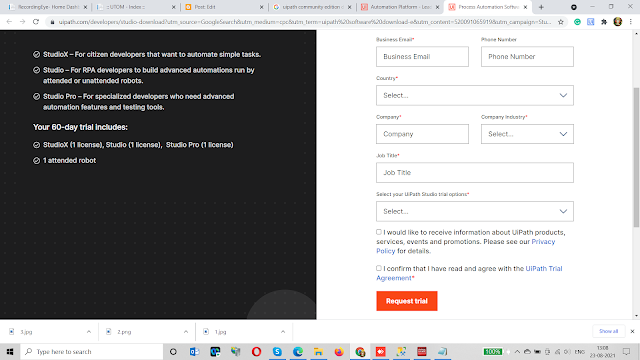
Step4: Next, Click Join Our Community
Step3: Next, we need to fill in the credentials in the form. 


Step5: Now, click the button for requesting a trial.


 Step 6: Next, you will get a link in your email id. Click that for downloading UiPath. It will download an exe file on your computer.
Step 7: Now in order to install run the exe file named UiPathStudio.exe, you got in step6
Step 8: UiPath will start its installation on your computer.

Starting UiPath Studio:-

Once installation is done, open uipath studio exe 
read more

Robotic Process Automation – Working

No comments

 This post will give a detailed working of Robotic Process Automation and its implementation.

How does RPA Works?

RPA can perform required tasks, which are usually repetitive and rule-based, much better than humans.

 But here the question arises that how RPA works. RPA bots Interacting with the user interface of the computer system to replace the back office exactly.

It works with any existing application and performs structured processes automatically. RPA

Code-free and user-friendly and therefore does not require additional software development

or IT specialists for its working. In simple words, we can say that RPA works by using

demonstrative steps.

RPA Implementation

To implement RPA, a software-based technology, software robot, or virtual assistant

Or bots are created that can perform processes like accounting, finance, management,

data entry etc.

The following approach should include the RPA implementation methodology

followed for a successful RPA implementation:

 First, identify the automation opportunities.

 Then optimize the identified processes.

 Next, build a business case for the RPA journey.

 Select an RPA vendor for implementation.

 Now, start initial RPA bots’ development.

 Lastly, expand our RPA scope and continue building RPA bots.


Example

The following figure shows an example of executing an email read process of reading emails

automatically by RPA:


Tools for RPA

There are many tools available for RPA; however, the following are some most popular

robotic process automation tools:

Blue Prism

It is an RPA software that provides an agile digital workforce to organizations. It can be

downloaded from https://www.blueprism.com/.

Automation Anywhere

Another tool for RPA is Automation Anywhere which can be downloaded

from https://www.automationanywhere.com/

UiPath

It is RPA software. It helps organizations to automate processes efficiently. It can be

downloaded from https://www.uipath.com/

OpenSpan

It is a robotic process automation tool based on the .net framework. It helps to integrate

desktop applications. It is now known as Pega OpenSpan after it was acquired by PEGA.

WorkFusion

It is another robotic process automation tool that provides an AI-powered platform to

automate operations. It can be downloaded from https://www.workfusion.com/


Which Tool to Choose?

As we have seen there are a lot of tools for RPA but the big question is which tool to choose. Following are some of the parameters that should be considered before selecting an RPA tool:

Technology

The most important parameter to check is technology such as Microsoft .NET, IBM Mainframe, Java, etc, in which the tool is built. The tool must be platform-independent So that automation solutions can support any application.

Data

Data is another important parameter. We should choose the tool which is easy to read And write business data across multiple systems.

Interface

The user interface of RPA should be user friendly as the complex user interface will be delayed

implementation process.

Interoperability

As discussed, Toll should be platform-independent and work across multiple applications.

Another important parameter is how easily and effectively the robot can be managed. NS

Equipment must have a high degree of control and visibility.

Type of tasks

The type of task, whether rule-based or knowledge-based, that can be configured by the RPA tool, is another important parameter that should be taken into account while selecting the tool.

Security

Security is one more important parameter to consider. RPA as we know it is one piece

Software, how much security control can be implemented is a factor that must be considered.

Applications of RPA

If the industry is using computers for repetitive and boring tasks like data entry, credit
processing, etc., so it can use RPA. The following are some of the applications of RPA:
various industries.

Industry

Usage

Banking

· Customer support · Loan processing · Fraud claims · Card’s activation

Human Resource (HR)

· Joining formalities · Payroll process · Shortlisting of candidates

Healthcare

· Patient registration · Billing · Report generation

Insurance

· Premium calculation · Processing claims · Clearance of claims · Responding partner queries

Utility

· Customer service · Debt recovery · Billing

Legal

· Converting documents digitally · Customer support

Business process outsourcing

· ERP automation · Invoice processing · Automation of logistic data

Government

· License renewal · Change of address

Infrastructure

· Account setup · Customer support · Application processing

read more